Updated 4 November 2026
How to Make Bicep Heart AI Video
Learn how to make Bicep Heart AI video from one photo. Compare a real result, follow four steps, and check photo requirements and credits.
One photo · 7 seconds · 480p. Sign in and review the current quote before generating.
Original photo → real result
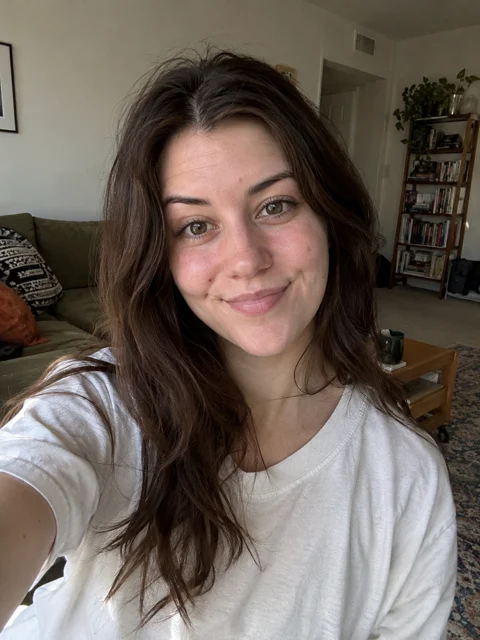
Reviewed website result. Around 4 seconds, the heart closes; hands and timing can vary with another photo.
Four steps in the generator
1. How to make Bicep Heart AI video from a photo
This guide shows how to make Bicep Heart AI video from one photo, using the same generator shown in the screenshots. Check the effect name before adding your picture so you do not accidentally start a different dance or scene. The intended format is seven seconds, 480p and vertical 9:16. You only provide the photo as creative material. There is no performance video to upload, no audio file to prepare and no prompt to write. The page already has the chosen effect's scene, motion and sound prepared.
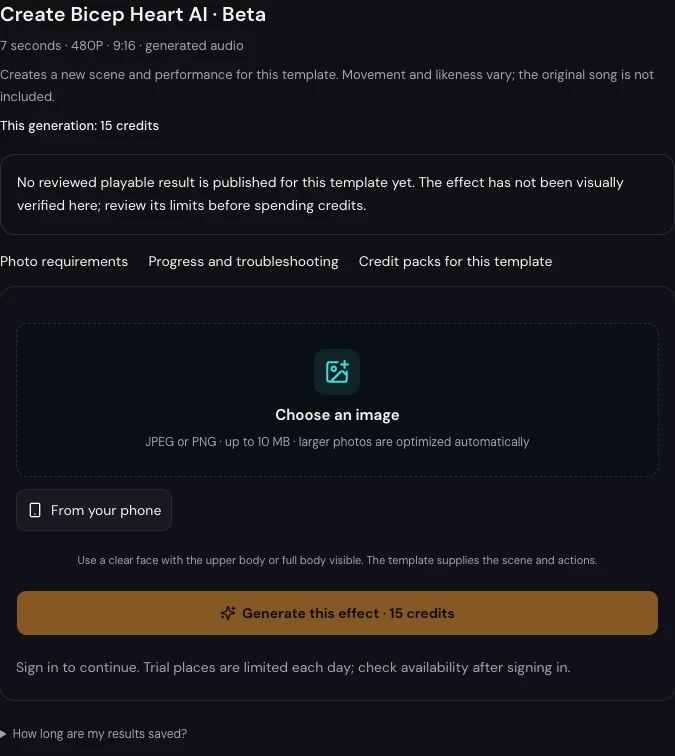
2. Add your photo
Use a photo of yourself or another adult who has agreed to this use. A head-to-waist picture with both shoulders and arms visible is a good starting point. Keep the face sharp, the hands empty and the lighting even. A bag across the chest, a bulky coat or a second person can make the subject harder to interpret. If all you have is a tightly cropped selfie, choose a wider original when one is available. You do not have to perform the heart in the photo; the effect supplies the movement.
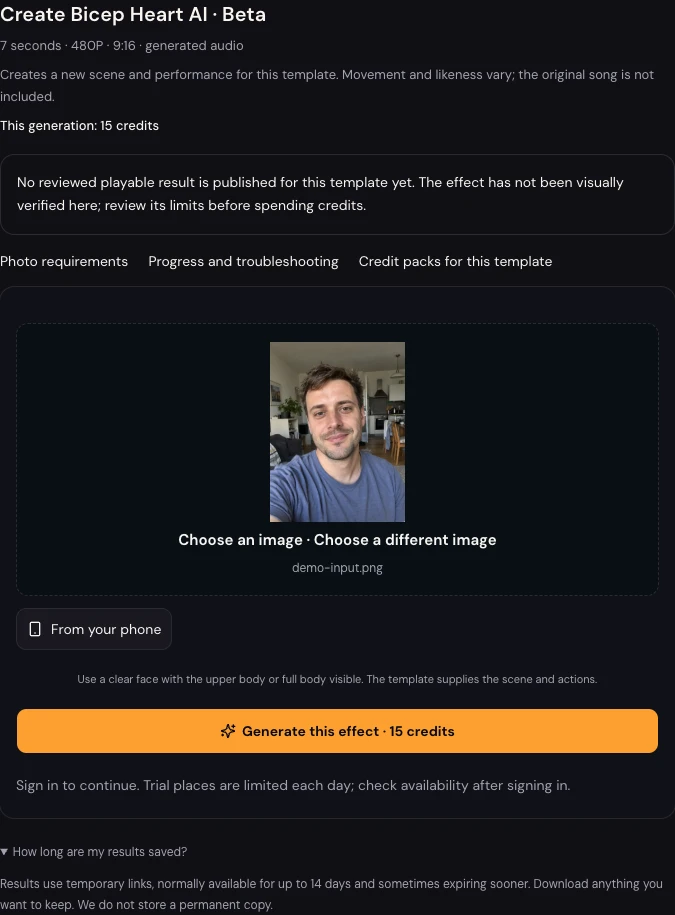
Use Choose an image to select a JPEG or PNG from your device. Wait for its local preview and check that you selected the intended person. You can replace the picture before generating. The example screenshot uses the project’s existing demonstration portrait; it shows a selected input, not a finished video.
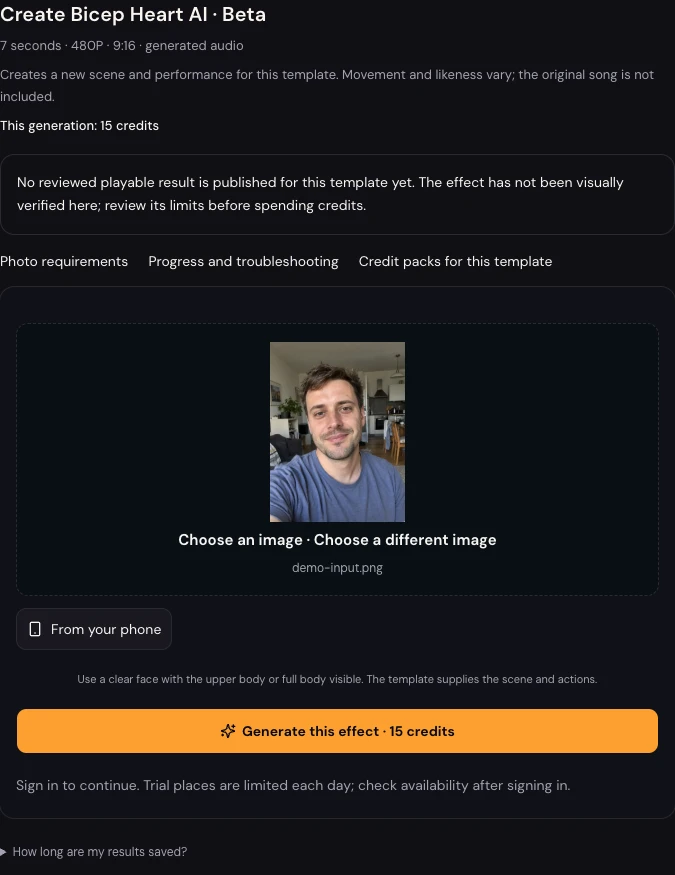
3. Check and submit
Follow the existing page's permission and sign-in controls. Confirm that you may use the photo and review the displayed credit cost before you generate. Do not assume that a pack of credits buys a fixed number of every effect; the current quote on the selected effect is what matters. If your balance is insufficient, review the account's available options before submitting. If you are learning how to make Bicep Heart AI video for the first time, start one request after checking the photo and quote. Repeatedly submitting is not a way to make the first task finish faster, and a fresh run can spend credits again.
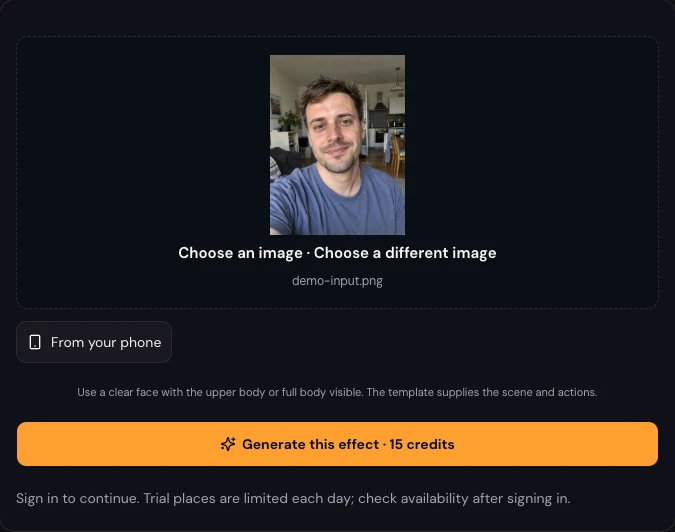
4. Download your Bicep Heart video
Once you know how to make Bicep Heart AI video, review the whole result before downloading. Use the progress display for the task you already started. Checking progress does not itself start another generation. When the result becomes available, play it from the first frame through the final hold. Check whether the face stays recognizable, whether there are exactly two arms and whether the hand closes into a readable heart without extra fingers. Inspect the transition as well as the ending: a good still can hide an awkward movement. There is no verified success rate for this effect, and the existing trend pictures cannot establish how your own photo will turn out.
Use the download action for the completed task. Keep a copy of the original result before making optional edits. If you add a caption, leave the upper arm and hand unobstructed; that area carries the visual joke. The effect uses an original beat, so it does not promise the same recording as a social post. Any extra music should be suitable for your intended use. Share the clip in the context agreed with the person depicted, and make its AI nature clear where needed. Review the saved file once more before posting or sending it.
How to make Bicep Heart AI video with a clearer heart
Learning how to make Bicep Heart AI video includes choosing a photo that leaves room for the hands. A missing shoulder in the source picture is a reason to choose a wider image before submission. A hand that merges with the bicep in the result is a reason to reject that result rather than hide it with text. You can return to the template explanation for format and credit details, or read the meme guide to check the intended silhouette. A new generation is a new request; changing the photo does not make a rerun free. If another effect would fit your message better, browse the directory before committing more credits.
What the bicep heart pose looks like
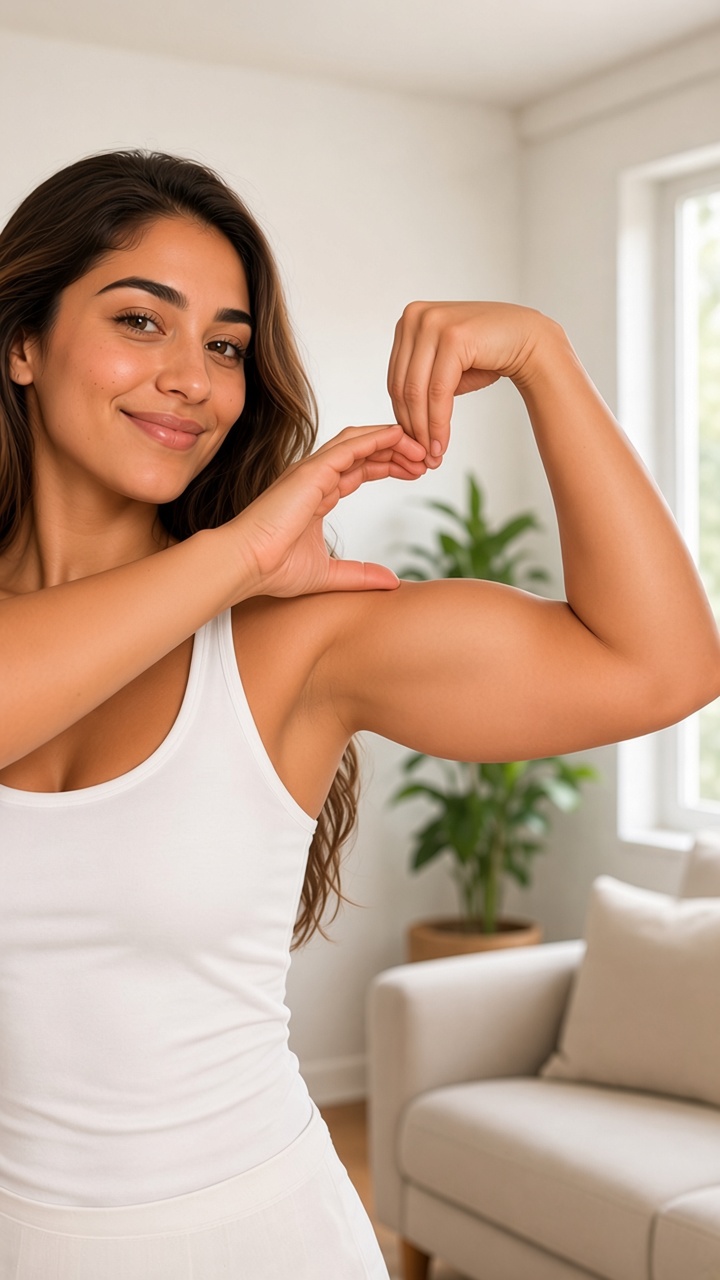
One arm flexes while the other hand curves across the upper arm. Their fingertips meet and the thumb points down to enclose a small heart. You do not need to pose like this yourself: upload one ordinary portrait and the effect supplies the movement. The image below is an AI-generated illustration of the intended hand position, not a photo of a real performance or a generated video frame.
Before starting another request
If a task is already processing, stay with its progress controls rather than pressing Generate again. When it finishes, review both the movement and the downloaded file. Keep a result only if the likeness, fingers and heart shape suit your use. A fresh request is a separate generation with its own credit cost, even when it uses the same photo. If you only wanted to explore the interface, you can stop after choosing a photo: previewing a local input does not submit a generation or spend credits.
How to make Bicep Heart AI video: questions
How to make Bicep Heart AI video without writing a prompt?
No. The effect already includes the movement and scene. Upload your photo; no prompt is required.
What photo works best?
Choose one clear adult portrait, preferably head to waist with both arms visible, empty hands and even lighting. You do not need to make the heart in the photo.
How much does one video cost?
The current price is 15 site credits for a 7-second, 480p video. Review the quote before submitting; each new generation is charged separately.
How long is the video and what format is it?
The target is 7 seconds, vertical 9:16, at 480p. The real example is 496 × 864 pixels and its downloaded file runs 7.104 seconds.
How to make Bicep Heart AI video without filming the pose?
No. This effect accepts one JPEG or PNG person photo. You do not need to upload a performance video, music or a material URL.
What if the arms do not form a heart?
Check for a closed heart between the fingertips, curved hand and upper arm, rather than an OK ring or a palm lying flat. Review the whole result; a new attempt is a separate paid request.
Can two people be in the photo?
Use a photo with one intended adult subject. This is a one-photo, one-person effect; a group portrait is not the supported way to make a duet.
Is this the same as the bicep flex meme?
It is a video adaptation of the flex-to-heart gesture. A still pose photo, an ordinary muscle flex and a two-hand heart above the head are different formats.
One photo · 7 seconds · 480p. Sign in and review the current quote before generating.